Learn how to download Youtube subtitles with our practical guide. Discover free methods, one-click tools, and tips for managing SRT and VTT files easily.
How to Download Youtube Subtitles: A Practical Guide
Downloading subtitles from a Youtube video is a powerful skill, and it's easier than you might think. You can pull them straight from Youtube's built-in transcript feature, grab them from your Youtube Studio dashboard if it's your own content, or use a dedicated tool to do the heavy lifting for you.
The right method depends on your goal. Are you a student needing notes from a lecture? A creator looking to repurpose your video into a blog post? Or a researcher analyzing dialogue? Whatever your objective, this guide will help you solve the problem of turning spoken video content into usable text.
Why Bother with Subtitles in the First Place?
Before we dive into the how, let's explore the why. Downloading subtitles isn't just a technical trick; it's a gateway to unlocking more value from video content. For creators, marketers, researchers, and students, these lines of text are a goldmine for enhancing accessibility, boosting engagement, and even creating entirely new content.
Think about it: search engines can't watch a video, but they excel at reading text. By extracting subtitles, you can repurpose a video into a blog post, enrich your video description with relevant keywords, or pull quotes for social media. This transforms a single video into a powerful SEO asset, giving platforms like Google the context needed to understand your content and rank it higher.
Expanding Your Reach and Making an Impact
Beyond SEO, subtitles break down barriers and foster inclusivity. A German cooking channel can suddenly inspire a home chef in Spain. A complex university lecture becomes accessible to students who are hard of hearing. A marketing video can deliver its message in a noisy office without headphones.
Downloading and using subtitles solves real-world problems:
- Go Global: Subtitles empower creators to connect with audiences from different language backgrounds, turning local content into a global conversation.
- Improve Accessibility: You open your videos to the 466 million people worldwide who are deaf or have hearing loss, making information more equitable.
- Boost Viewer Understanding: In a world where many of us watch videos on mute, subtitles ensure your message is always understood, loud and clear.
This guide will walk you through the various methods for obtaining these valuable subtitle files. This chart can help you decide which path solves your specific problem.
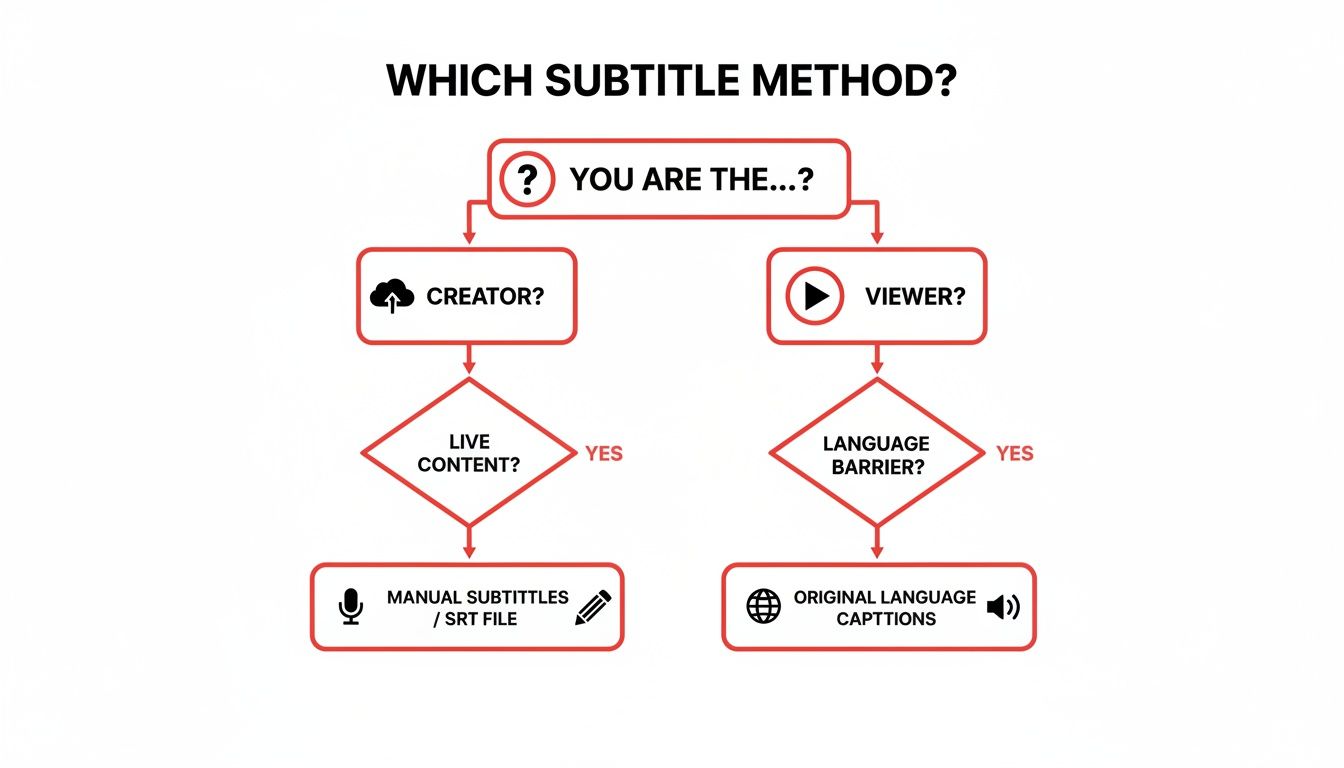
As you can see, creators have direct access to their subtitle files, but viewers and researchers can leverage other tools to download and use captions for learning, content creation, or accessibility projects.
If you're looking for a mix of speed and accuracy, dedicated tools are often the way to go. A service like YoutubeToText can turn a fiddly, multi-step process into a simple copy-paste job.
Using Youtube's Built-In Tools
Before exploring third-party software, it’s worth mastering what Youtube itself offers. The platform has a couple of built-in ways to access Youtube subtitles, and they work surprisingly well for most situations, whether you're a viewer or the creator of the video. Best of all, they're free and immediately available.
For anyone who just needs the text from a video—perhaps for taking notes, studying, or grabbing a few quotes—the transcript feature is the simplest solution. It’s a hidden gem that many people overlook. This tool provides every single word spoken in the video, complete with timestamps, making it incredibly easy to follow along or pinpoint a specific moment.
Getting the Public Video Transcript
If a video has captions (either auto-generated by Youtube or uploaded by the creator), you can view the full transcript. This is a lifesaver for students trying to summarize a lecture or a journalist needing to pull accurate quotes for a story.
Finding it on a desktop is straightforward:
- Go to the Youtube video you’re interested in.
- Just below the video player, you'll see the description box.
- Click the "...more" button to see the full description.
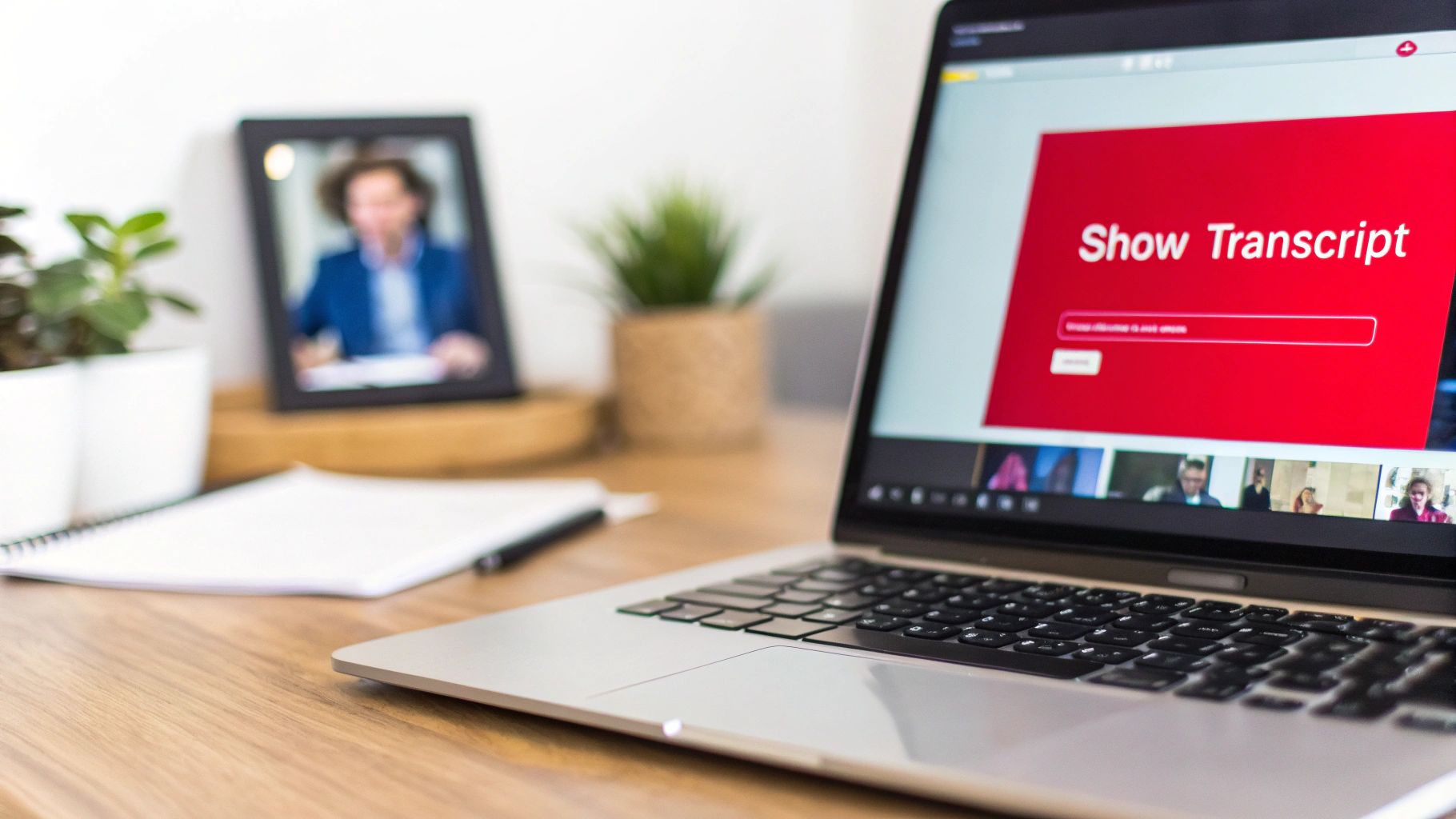
- Scroll down, and you should spot a button labelled "Show transcript."
Clicking that button will open a panel, usually on the right side of the video, with the entire script laid out with timestamps. Instantly, you have a scrollable, searchable version of all the dialogue.
A Simple Trick for Clean Text
The default view with timestamps is great for reference, but it can be cumbersome if all you want is the plain text for a document or blog post. Luckily, stripping them out is easy.
Just click the three little dots at the top of the transcript panel. A small menu will pop up with an option to "Toggle timestamps." Click it, and all the time markers vanish, leaving you with a clean block of text ready to copy and paste anywhere you like.
This process is quick and requires no extra tools. The main limitation is that you only get plain text. If you're a content creator who needs a properly formatted subtitle file, like an SRT or VTT, for repurposing, you'll need a different approach. For a more detailed walkthrough, check out our guide to downloading a Youtube transcript.
For Creators: Download Your Subtitle Files in Youtube Studio
If you're the one creating the videos, your Youtube Studio dashboard provides much more control. This is your hub for managing, editing, and downloading the actual subtitle files for your content. It’s essential for ensuring your captions are accurate or for repurposing your video for other platforms.
Inside the Studio, you’ll find all the subtitle tracks for your videos, which usually come in two flavors:
- Automatic Captions: These are what Youtube’s speech recognition tech generates. They're a decent starting point but are often flawed in spelling, grammar, and punctuation.
- Manual Captions: These are the files you’ve uploaded yourself or had professionally created. They’re almost always going to be more accurate and polished.
Think of this dashboard as your command center for all things subtitles. From here, you can tweak the text or download the files in just a couple of clicks.
This is especially important for video editors who need a timed .srt file to burn into a video for social media, or for marketers localizing a campaign for different countries. In the Netherlands, for instance, where Youtube penetration is a massive 87.7%, accurate subtitles are vital for creators aiming to connect with a wider audience. For Dutch Youtubers, being able to easily manage and download subtitles is a key part of international growth. You can read more about these trends and see how Youtube is used across different countries.
Ultimately, knowing when to grab a public transcript versus when to download a proper file from the Studio is key. The first is perfect for quick text grabs and note-taking, while the second gives you a professional, reusable asset for your entire content strategy.
When You Need More Than Youtube's Built-in Tools
While Youtube’s built-in options are fine for a quick copy-paste, they can feel clunky if you need subtitles regularly or in a specific format. If your goal is speed, flexibility, and enhanced productivity, third-party tools are the solution. These services are designed to solve one problem and solve it well: download Youtube subtitles from any video, hassle-free.
For anyone on a deadline—whether you're a content creator repurposing videos, a researcher analyzing interviews, or a student studying lectures—fiddling with the transcript window is inefficient. Third-party tools cut right to the chase, often boiling the whole process down to a simple copy and paste. They’re built for pure efficiency, freeing you up to focus on what truly matters: using the content.
Using a Dedicated Service Like YoutubeToText
For the most straightforward experience, a dedicated web tool like YoutubeToText is your best bet. These platforms are incredibly direct. You give them a Youtube link, and they give you back the text in the format you need. No software to install, no complicated steps.
The process solves the problem in seconds:
- Grab the URL of the Youtube video you want subtitles from.
- Paste the link into the tool’s input box on their website.
- Choose the format you need—like plain text (.txt), SubRip (.srt), or WebVTT (.vtt).
- Hit the download button.
In an instant, you have a clean file ready to go. This kind of speed is a real game-changer for productivity. Imagine a marketing team needing to pull quotes from a dozen customer testimonials; what used to be a tedious task can now be done in minutes, inspiring new ad copy and social media posts.
One of the biggest advantages of these tools is that they often work even when the creator has hidden the "Show transcript" button. A good service can usually still pull the subtitle data, making it a far more reliable option.
Why a Specialised Tool Is Often Better
Sure, there are plenty of free online downloaders and browser extensions out there, but they often come with drawbacks. Browser extensions can slow your computer down and sometimes ask for invasive permissions, which can be a privacy concern. Many free sites are littered with pop-up ads or impose frustrating limits on how many videos you can process.
When you're doing serious work, you need a reliable solution. A specialized platform provides a clean, professional experience and often includes features that simpler tools lack:
- Multiple File Formats: Get SRT, VTT, and TXT files instantly, perfect for everything from video editing to academic research.
- Multilingual Support: Easily grab subtitles in any language available on the original video.
- High Accuracy: These tools are designed to fetch the highest-quality caption file available, whether it was uploaded by the creator or auto-generated by Youtube.
- More Than Just Subtitles: Many of these services are evolving. They don't just extract text; some can also provide transcriptions and summaries. To see what's possible, check out how a video to text converter can help you do even more with video content.
Comparing Your Options
So, which tool is right for you? It really boils down to your specific needs. Are you looking for a one-off download, or do you need a dependable tool for a regular workflow?
Here’s a quick breakdown to help you decide:
| Tool Type | Best For | Potential Downsides |
|---|---|---|
| Dedicated Web Tools | Professionals, researchers, and creators who need reliability and multiple formats. | Might require a subscription for high-volume use. |
| Browser Extensions | Casual users who want quick access directly on the Youtube page. | Can slow down your browser; potential privacy issues. |
| Free Online Downloaders | Quick, one-time downloads where format and quality aren't critical. | Often packed with ads; may have download or length limits. |
For anyone who needs to download Youtube subtitles on a regular basis, a dedicated tool is a smart move. The time you save, combined with the flexibility of different formats and overall reliability, makes it a worthwhile investment. It lets you stop struggling to get the content and start actually using it.
Advanced Ways to Download Subtitle Files
If you're comfortable with a more technical approach and want to bypass third-party tools, there's another way to download Youtube subtitles. By using your browser's built-in developer tools, you can intercept the subtitle file as the video player loads it. It’s a great skill for developers, data analysts, or anyone who wants to understand how web pages work.
This approach gives you a direct line to the source files, which are often in formats like VTT (WebVTT) or another XML-based format. You’re in complete control, seeing exactly what data the webpage is requesting. It takes a few more clicks, but knowing how to do this is empowering, especially if you ever need to troubleshoot or want to automate subtitle downloads for a larger project.
Uncovering Subtitles with Browser Developer Tools
Every modern browser—Chrome, Firefox, Edge—comes packed with a suite of developer tools. One of the handiest parts is the 'Network' tab. Think of it as a logbook that records every single file your browser fetches to load a webpage. We can use this to spot and grab the subtitle file.
Ready to give it a try? Here’s the process:
- Open Developer Tools: First, head to the Youtube video you want. Right-click anywhere on the page and choose "Inspect." You can also use a keyboard shortcut, which is usually
Ctrl+Shift+Ion Windows orCmd+Option+Ion a Mac. - Head to the Network Tab: A panel will pop up. Look for and click on the "Network" tab. This is where the magic happens.
- Filter the Requests: The Network tab will instantly start filling up with all sorts of requests. To clear the clutter, type
timedtextorcaptioninto the filter box. This helps you zero in on the subtitle files. - Trigger the Subtitle Load: Don't see anything yet? Make sure subtitles are actually turned on in the Youtube player (click the "CC" icon). Sometimes, you might need to refresh the page with the Network tab open to catch that initial request.
- Find and Save the File: A file request should now appear in the list. Click on it, and a new pane will open with all the details. Look for the "Response" or "Preview" tab to see the contents of the subtitle file. From there, you can just copy the text and save it manually as a
.vttor.srtfile.
This method gets you the raw file, exactly as Youtube serves it up.
Navigating Common Hurdles
While this technique is powerful, it isn't always a walk in the park. Websites like Youtube load content dynamically, which can make that subtitle file request a bit elusive.
You might hit a couple of snags:
- No File Appears: If your filter for
timedtextcomes up empty, try playing the video for a few seconds or switching the subtitle language. This action often forces a new request that the Network tab can pick up. - Complex File Formats: On occasion, the response isn't a neat VTT file. It might be in an XML format that needs a bit of parsing or cleaning up before you can use it.
The key here is patience. The request you're hunting for contains all the text and timing cues. Once you find it for one video, you’ll know exactly what to look for next time, and the whole process will get much faster.
Why This Method Matters for Dutch Creators
For content creators, especially in regions with high internet usage like the Netherlands, understanding these advanced methods is more than just a technical exercise; it's a way to gain more control over your content's global reach. Think about it: non-English content, common in the NL region with countless Dutch-language vlogs and educational videos, sees a huge 82% increase in international views when good subtitles are added. For Dutch creators, this isn't just a vanity metric—it translates to real numbers. With top Dutch Youtubers bringing in millions of subscribers, subtitles are a serious revenue booster. You can read more about how subtitles impact global viewership to see the data for yourself.
Mastering different ways to download Youtube subtitles ensures you can always access, edit, and repurpose your captions, no matter what the platform's limitations are. It opens the door to creating scripts for bulk processing or even integrating subtitle extraction into a larger content workflow, giving you a real edge.
Getting Your Subtitle Files Polished and Ready
So, you’ve downloaded your Youtube subtitles. That’s a great start, but the work isn't done. The raw file you get—especially if it’s from auto-generated captions—is rarely perfect.
This is where editing and converting come in. Taking a few extra minutes to refine your subtitle file transforms it from a rough transcript into polished, perfectly synced captions. This crucial step elevates your content, solving the problem of clunky, inaccurate text and creating a professional, seamless experience for your audience.
SRT vs. VTT: What’s the Difference?
Before you start editing, it helps to know what you’re working with. You'll almost always get your subtitles in one of two formats: SRT or VTT. They look similar, but they have some important distinctions.
- SRT (SubRip Text): Think of SRT as the industry workhorse. It’s a simple, plain-text format supported by nearly every video player and editing software out there. It’s basic: just a number, timestamps, and the text.
- VTT (WebVTT): This is the modern, web-friendly version. It does everything SRT does but adds support for extra features like text styling (bold, italics, colours) and on-screen positioning. It's the standard for HTML5 video.
For most people, SRT is the safest bet because of its universal compatibility. But if you’re embedding a video on a website and want more control over how your captions look, VTT is the way to go.
Quick Fixes with a Simple Text Editor
You don't need fancy software for basic corrections. Since SRT and VTT files are just plain text, you can open and edit them with any standard text editor, like Notepad on Windows or TextEdit on a Mac. This is perfect for making quick fixes.
I often use this method for solving common problems like:
- Correcting glaring spelling and grammar mistakes.
- Fixing the weird punctuation that auto-captioning loves to create.
- Rewording clunky phrases to make them sound more natural.
Just be super careful not to accidentally change the timestamps or the sequence numbers. One wrong keystroke can throw your entire subtitle file out of sync. If you've started with a basic text file without any timing, our guide can show you how to convert a TXT file into a professional SRT file.
Getting Serious with Subtitle Software
For more detailed work, like retiming entire sections or splitting long lines of text, you'll want to use dedicated subtitle editing software. These tools provide a visual interface, letting you see the video and captions side-by-side, which makes syncing everything up a whole lot easier.
A fantastic free option I recommend is Aegisub. It gives you precise control over the little details that matter.
You can:
- Adjust Timestamps: Nudge the timing forward or backward by milliseconds to get that perfect sync with the audio.
- Format Lines: Easily split long, hard-to-read subtitle lines into two.
- Apply Styles: If you're working with a format like ASS (Advanced SubStation Alpha), you can even change fonts and add colours.
A good rule of thumb I always follow is to keep subtitle lines to a maximum of 42 characters per line. This ensures they’re easy to read before they disappear from the screen.
This level of precision is essential for professionals. For example, many Dutch Youtube creators are now downloading subtitles to reach a global audience, capitalising on the Netherlands' huge Youtube penetration of 87.7%. For them, accurate timing and clean formatting are non-negotiable. You can find more stats about Youtube usage in the Netherlands on Statista.com.
Converting Between Formats
Finally, you'll often find yourself needing to convert a file from one format to another. Maybe you downloaded a VTT file, but your video editor will only take an SRT.
Don’t worry, this is easy. Most subtitle editors, including Aegisub, and plenty of free online tools can handle this for you. It's usually as simple as opening your file, selecting "Save As" or "Export," and choosing the format you need. This flexibility means you'll always have the right file for the job, no matter where your video is headed.
A Quick Word on Copyright and Accuracy
Before you start downloading subtitles from every video you see, it’s important to understand the responsible side of things. The text you download isn't a free-for-all. To use subtitles ethically and effectively, you must navigate copyright considerations and be realistic about accuracy.
Respecting copyright is paramount. Subtitles are creative works, just like the video they belong to. Grabbing them for your own personal use—like studying, offline viewing, or for accessibility reasons—is generally considered fair use. But the moment you start republishing someone else's subtitled video or passing off their transcript as your own work, you're crossing a serious line.
My rule of thumb is simple: stick to downloading subtitles from your own content, or for personal research and educational purposes. If you need to quote a part of the text, always give clear credit to the original creator.
The Problem with Caption Accuracy
Another critical point is the reliability of those subtitles, especially Youtube's auto-generated ones. While the AI technology has improved, it's far from perfect. Automated systems often stumble over:
- Complex Terminology: Jargon, niche terms, or brand names are frequently mangled.
- Accents and Pacing: The AI struggles with people who talk fast or have strong regional accents.
- Punctuation and Grammar: Auto-captions are infamous for their lack of commas, periods, and logical sentence structure.
Because of this, you should always treat auto-generated captions as a rough first draft. If you're just watching for personal understanding, a few mistakes aren't a big deal. But if you're using the text for professional work—like journalism, academic research, or legal transcription—a manual review is essential.
You must go through the downloaded text to fix names, correct awkward phrasing, and ensure the intended meaning is preserved. Skipping this step could lead to misquoting sources or working with flawed information. A quick proofread is a small investment that can save you from major headaches later.
Frequently Asked Questions
Can I Download Subtitles From Any Youtube Video?
For the most part, yes—as long as the video actually has subtitles to begin with. You can easily grab either the automatic captions Youtube creates or the custom subtitles a creator has uploaded themselves.
If a video doesn't have any captions at all, you won't be able to pull them directly from Youtube. In that case, your best bet is to use a third-party tool that can listen to the audio and generate a whole new transcript for you.
What’s the Difference Between SRT and VTT Files?
Think of SRT (SubRip Text) as the classic, workhorse format for subtitles. It’s incredibly simple, containing just the text and timing codes, which is why it’s supported by practically every video player out there.
VTT (WebVTT) is the newer, more web-friendly option. It can do everything SRT does, plus a few extra tricks like adding text styling and positioning the captions on the screen. For simple offline viewing, though, SRT is usually the most reliable choice.
Is It Legal to Download Youtube Subtitles?
Generally speaking, downloading subtitles for your own personal use is perfectly fine. This usually falls under "fair use" for things like accessibility, private study, or just watching a video offline.
Where you can run into trouble is if you start sharing or republishing someone else's subtitled work without their permission. That could be a copyright issue. It’s always best to respect the creator’s work and only use their subtitles for your own needs.
Ready to turn any Youtube video into text in seconds? YoutubeToText makes it simple. Just paste a link and instantly download accurate transcripts, summaries, and subtitle files in SRT or VTT format. Try it for free at youtubetotext.ai.